How to keep your photos private in HashPhotos on iPhone/iPad
The Photos app has a “Hidden” feature, but it can be inconvenient because you can't organize hidden items into albums.
HashPhotos provides Private Albums to keep your photos private and organized.
Set Passcode
To use a private album, you need to set a passcode first.
Open Settings > Security.
-
Tap Turn Passcode On.
Turn on Use FaceID/TouchID to unlock Private Albums with Face ID/Touch ID.

Add the first private album
Open the Sidebar.
Tap the Local Library section at the top of the Sidebar.
-
Tap the Add (+) button at the bottom of the Sidebar.
-
Tap Private Album and enter the album name.

Add photos to a private album
In a thumbnail view
-
Tap the Add/Move To button in the bottom toolbar.
-
Tap Private Album...
-
Choose the album you want to add to.

In a viewer
-
Tap the Add To button (or the album name) in the top-right corner of the viewer.
-
Tap Private Album...
-
Choose the album you want to add to.

If you want to completely remove photos from your system library, you must also empty the “Recently Deleted” album in the Photos app.
HashPhotos can't access “Recently Deleted” because iOS doesn't allow third-party apps to access it.
Open a private album
-
Open the Sidebar.
-
Tap the
 Local Library section at the top of the Sidebar.
 -
Tap the Private Album section and enter your passcode.
Tap the album you want to open.

Lock a private album
- Tap the red lock button at the bottom of the Sidebar.
- Tap the red lock button next to the album name in the thumbnail view.
-
If you turn on Settings > Security > Private Album > Lock with Shake Gesture, you can lock Private Albums by shaking your device.
There are also additional options you can customize in Security settings.

Manage Private Albums
Add private album or folder
-
Tap next to the private album section title in the sidebar.
This button only appears when the Private Albums section is expanded.
-
Tap New Album or New Folder to create an album or folder.

Add an album/folder inside a folder
-
Touch and hold (Long Press) the folder name in the sidebar.
-
Tap New Album or New Folder.

Delete a private album/folder
- Touch and hold (Long Press) the album/folder name in the sidebar.
If you delete an album/folder, all photos inside it will also be deleted.
Reorder albums/folders
- Touch and hold (Long Press) the album/folder name to reorder in the sidebar.
- When the context menu appears, start dragging.
The menu will disappear. - Drop where you would like to place the album/folder.
Sort by Name must be turned off to reorder manually.
- Photos in Local/Private Albums are stored in the app sandbox and can't be accessed by other apps.
-
If you delete the app, all photos in Local/Private Albums are deleted and can't be recovered.
Be sure to back up important photos elsewhere.
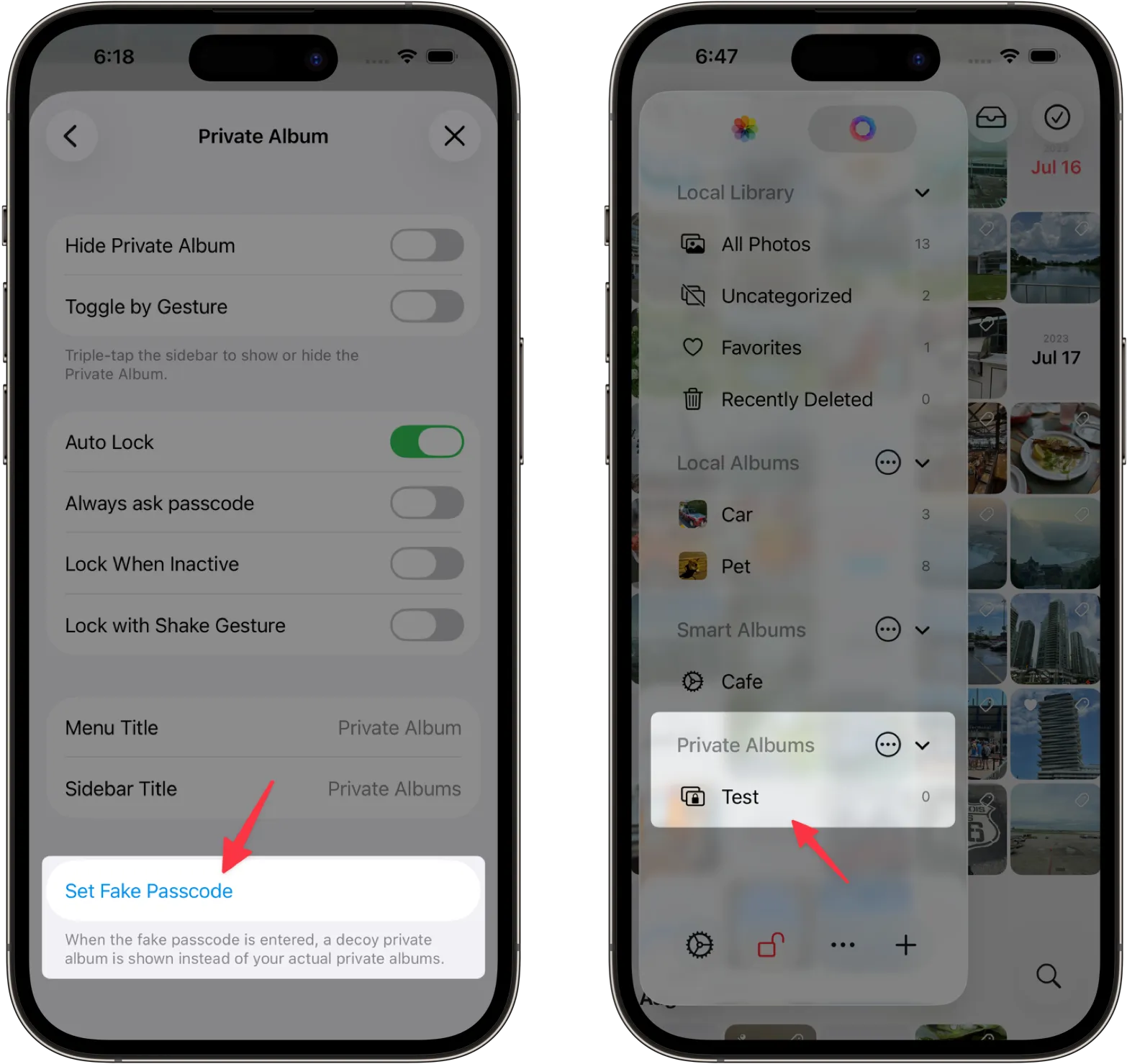
Fake Passcode
You can set a fake passcode to open an empty decoy album instead of your Private Albums.
-
Open Settings > Security > Private Album.
-
Tap Use Fake Passcode to turn on the feature.