How to categorize photos into albums on iPhone/iPad
HashPhotos fills that gap with tools built for sorting photos into albums.
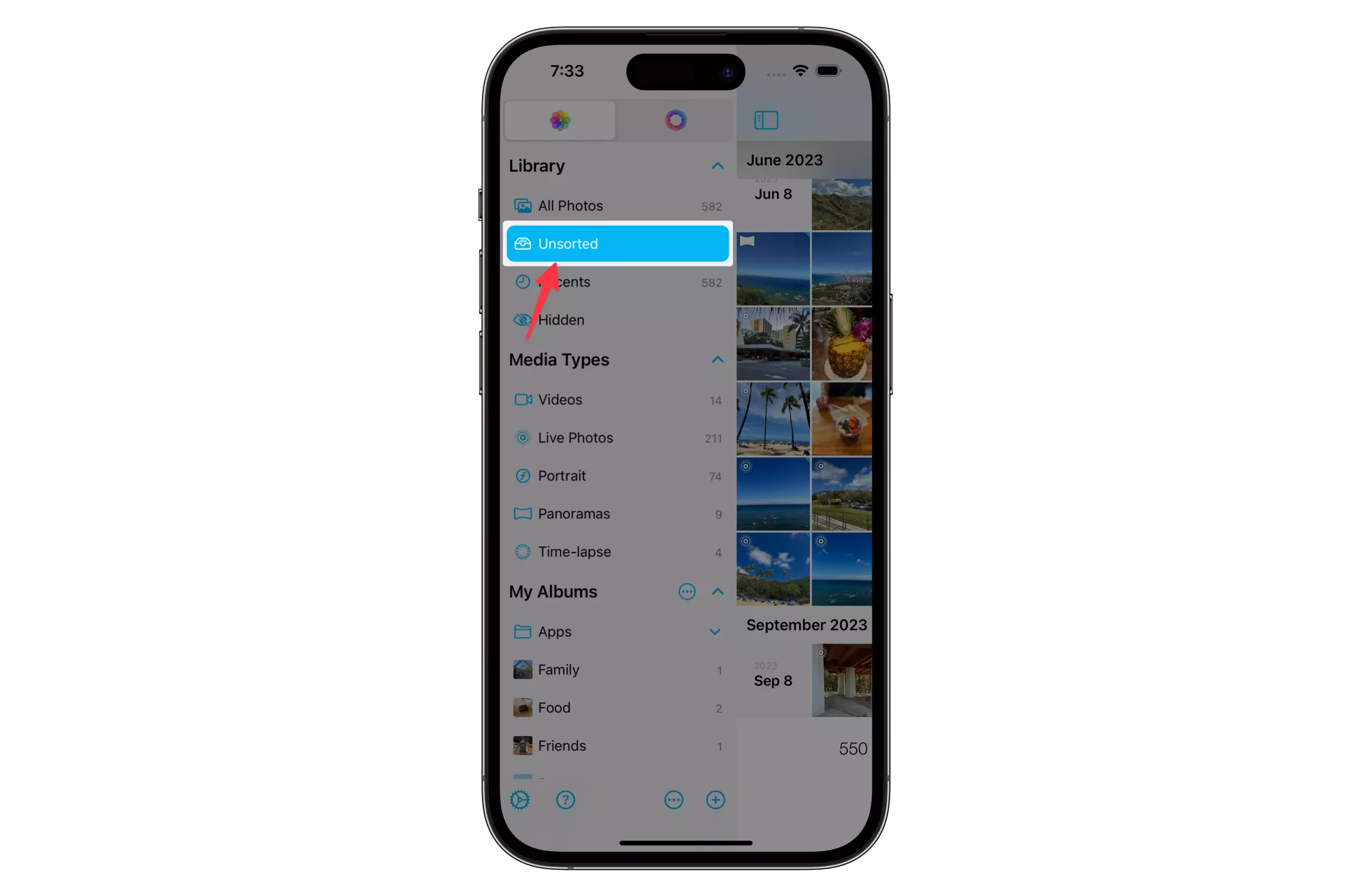
Uncategorized Album
The Uncategorized album shows all photos that aren't assigned to any album yet.
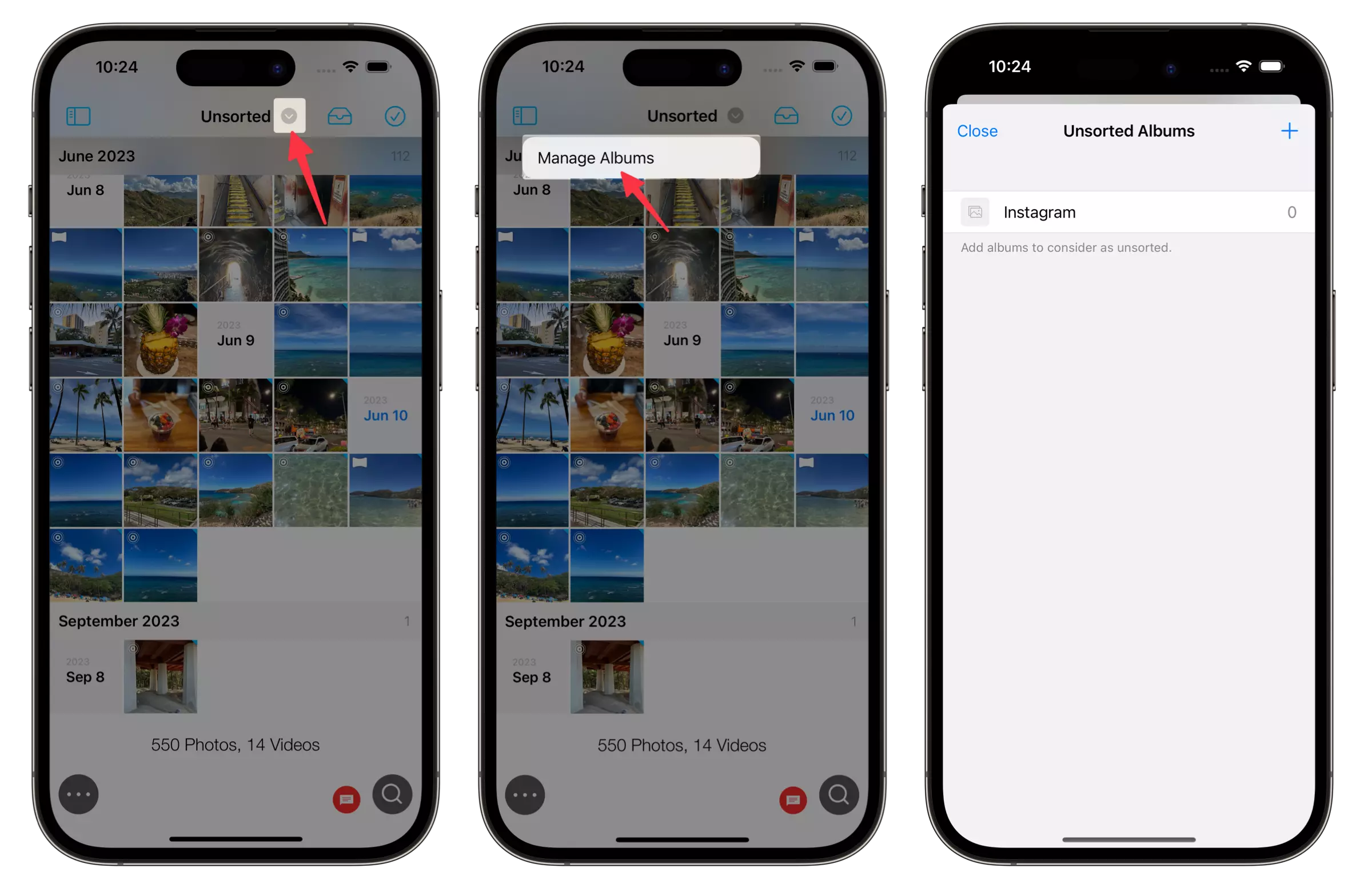
Manage Uncategorized Albums
You can choose which albums count as "uncategorized."
For example, you can include albums that other apps created automatically.
Touch and Hold (Long Press) the Uncategorized Album in the sidebar.
-
Tap Manage Albums in the context menu.
-
Add albums that should count as uncategorized.
Swipe an album name to the left to remove it.
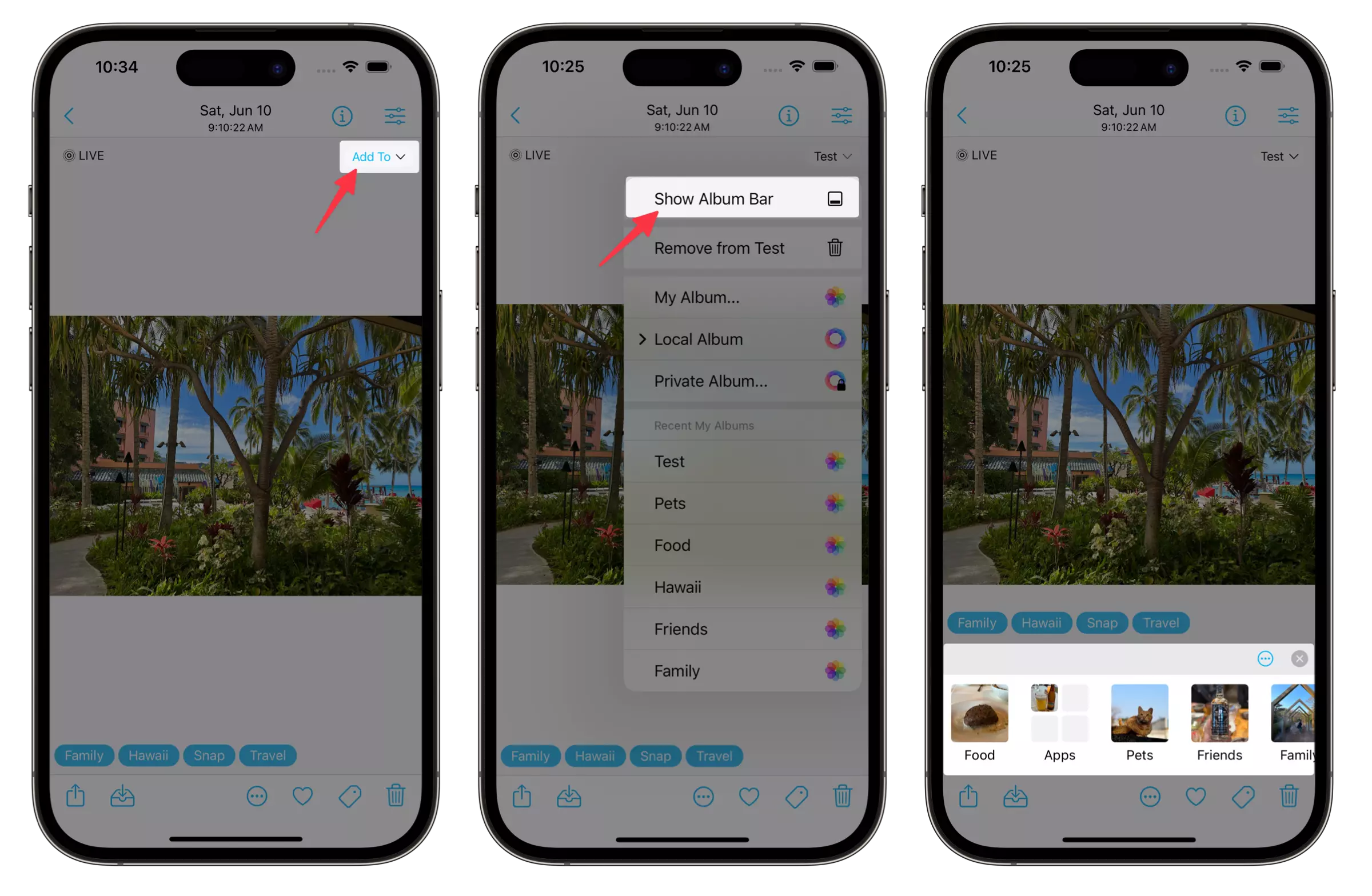
Album Bar
-
Open a viewer.
-
Tap the Add To button, or the button that shows album names, in the top-right corner of the viewer.
-
Tap the Show Album Bar menu item.
-
In the Album Bar, tap the album you want to add photos to.
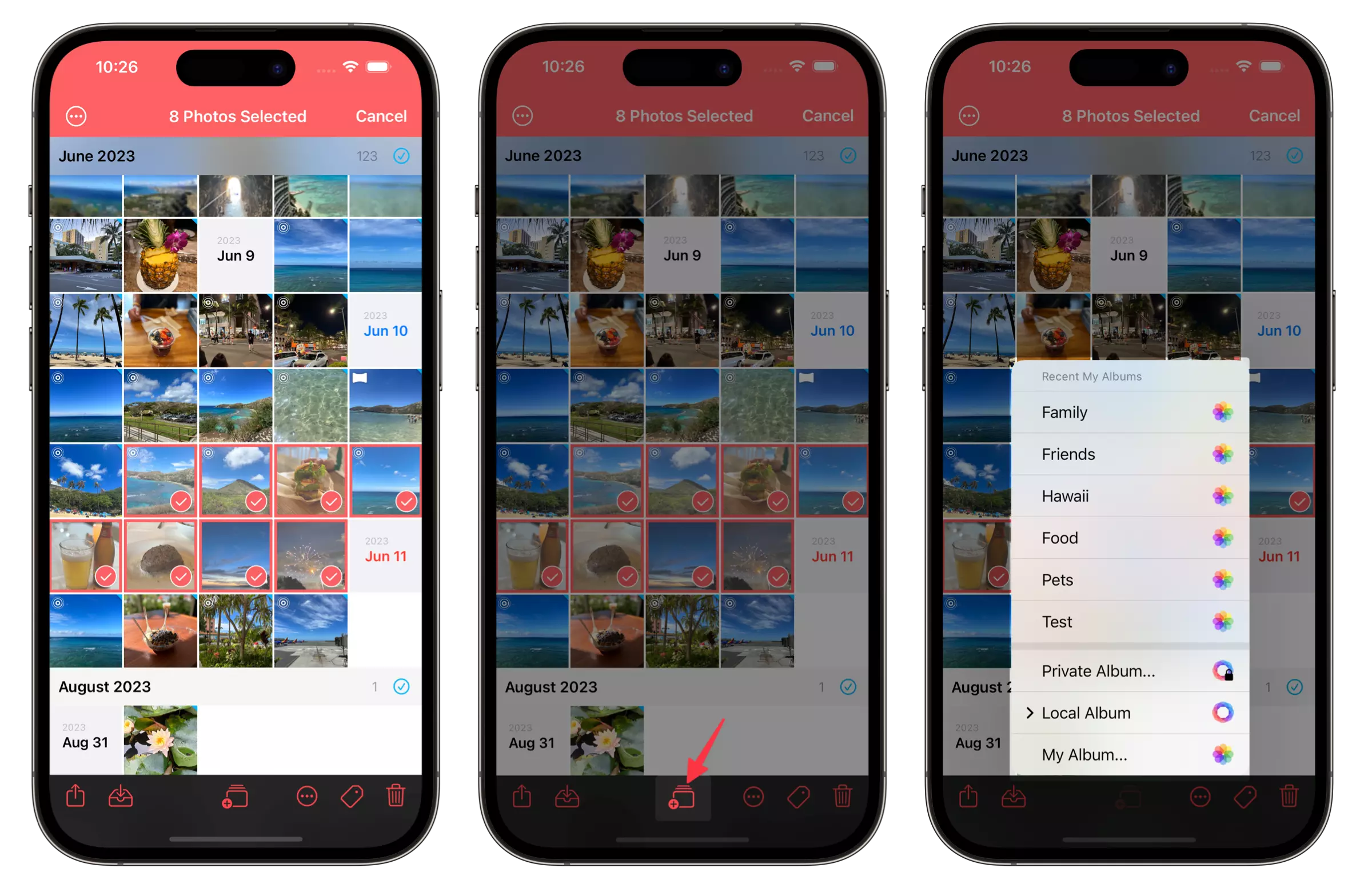
Add multiple photos to an album
Select photos in thumbnail view.
-
Tap the Add To button in the bottom toolbar.
-
Tap Choose... or Album... to choose an album or tap an album name in Recent Albums.
Pin albums you use often
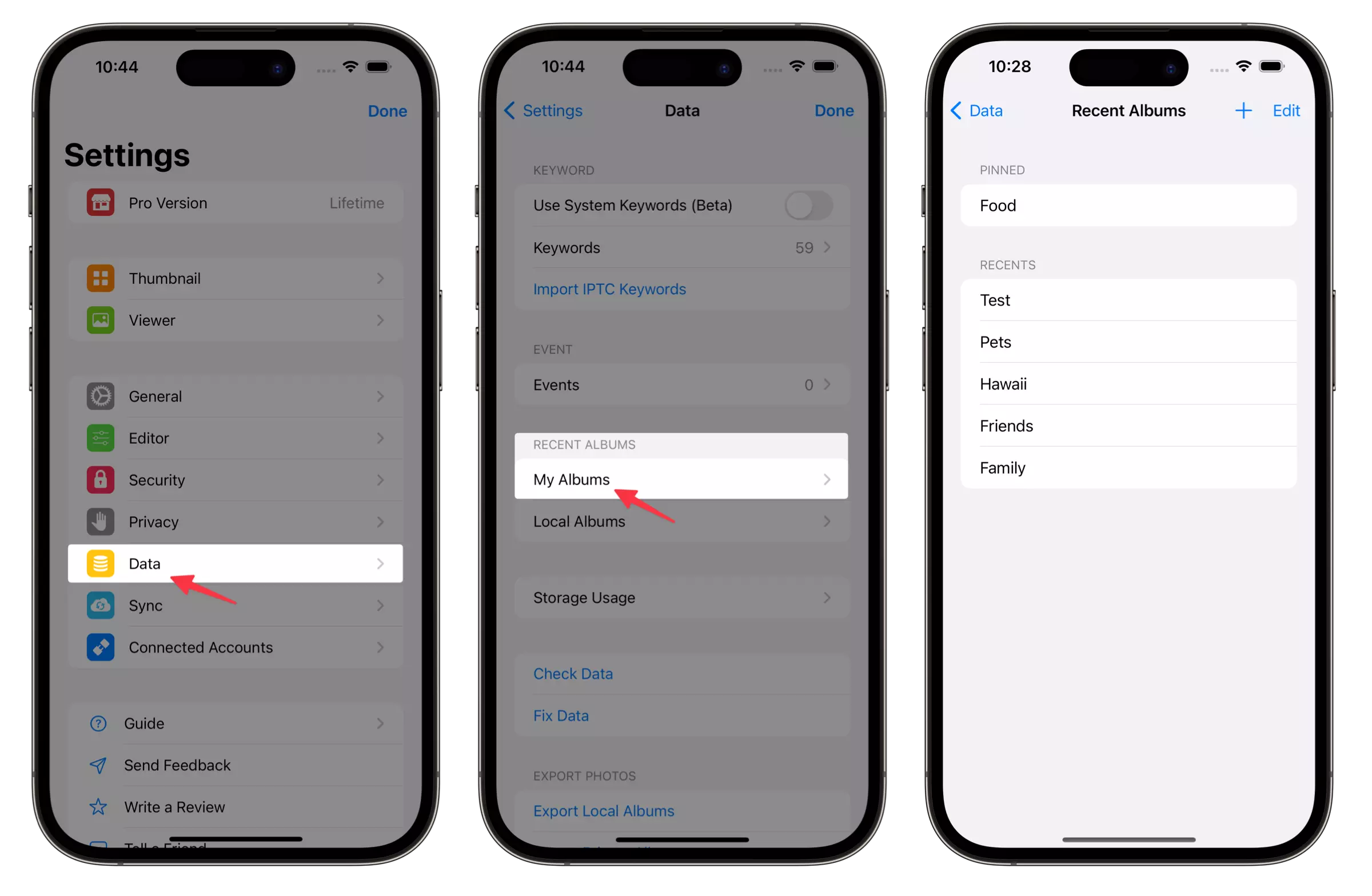
Open Settings > Data.
-
Tap Pinned Albums in the Album section.
-
Swipe an album name to the left to pin it, or tap the + button to choose an album to pin.